
Google Storage Project - FAQs
General Questions
Google has ended its unlimited storage offering for educational institutions. Consequently, the University of Alaska must adapt by managing our storage with the introduction of storage limits. This change requires us to revise our current data storage practices and policies.
| User Role | Google Workspace | Microsoft 365 |
|---|---|---|
| Employees (Faculty & Staff) |
20 GB | 20 GB |
| Emeritus | 15 GB | 15 GB |
| Students | 5 GB | 5 GB |
| Alumni | 1 GB (Gmail only) | — |
| Affiliates / Sponsored Accounts (third-party users who require temporary or term-based acces) |
1 GB (Gmail only) | — |
For example, if someone is both a student and a staff member, their account will receive the staff storage allocation (15GB), not the student allocation (5GB), nor the cumulative total of both.
Managing & Reducing Storage
Google Workspace: Login to Google Workspace, then visit your Google storage usage page.
Microsoft 365: Visit your Microsoft 365 largest usage page or log into OneDrive and check total storage at the bottom of the left menu bar.
In Google Workspace storage:
- Gmail messages and attachments
- Google Drive files
- Google Docs, Sheets, and Slides
- Trash and Spam (until permanently deleted)
In Microsoft 365 storage:
- OneDrive files
- SharePoint documents
- Teams files and recordings
- Old file versions
- Recycle Bin contents (until emptied)
Google Workspace: To identify what you can delete from Google Drive, review your storage usage by accessing
the ‘Storage’ section in your Drive ‘Settings’. Then sort files by size to find large,
unnecessary files, such as old drafts, duplicate documents, large video files, or
outdated presentations. Use search functions to target specific file types or dates
to identify files you no longer need. Consider moving files to the Trash temporarily, then permanently deleting them by emptying the Trash.
Microsoft 365: To identify deletable data in Microsoft 365, check OneDrive and SharePoint for old,
large, or duplicate files, along with files no longer needed for projects. Move them
to the Recycle Bin then empty the Recycle Bin for permanent removal of deleted files.
Also, delete any unused Teams or channels.
For both account types, remember to relocate any personal files to non-work locations.
Typically, large video files, high-resolution photos, and large email attachments occupy the most space. Regularly reviewing and cleaning these files can help manage your storage effectively.
For Gmail (Email):
- Delete large emails and attachments: Use Gmail search operators like
has:attachment larger:10Morsize:10mbto quickly find and delete space-consuming messages. Consider downloading important attachments before deleting the email. - Remove old emails: Search using
older_than:5y(or another timeframe) to find outdated messages. Combine withhas:attachmentfor greater impact. - Empty Spam and Trash folders: Messages in these folders still count toward your storage until permanently deleted.
- Manage subscriptions and promotions: Search for “unsubscribe” to locate newsletters and bulk-delete unwanted messages. Unsubscribe from mailing lists you no longer need.
- Review “All Mail” and archived messages: Archived emails remain in your account and count toward storage. Periodically review and delete unnecessary items.
- Use Gmail organization tools: Apply labels and folders to stay organized and make ongoing cleanup easier.
For Google Drive (Storage):
- Check your storage limit: Visit your Google storage usage to monitor your Google Drive and Gmail storage usage.
- Use Google's storage manager: Access the storage manager (usually under "Storage" in Google One) to review and delete unnecessary large files, photos, and videos.
- Organize Files: Create folders and subfolders to categorize your files in Google Drive.
- Delete Unnecessary Files: Regularly review and delete files you no longer need, including those in the Trash.
- Review and Delete Photos and Videos: Find and delete unnecessary duplicate photos and videos.
General Tips:
- Regularly review your storage usage: Schedule a few minutes each week to check your storage usage, identifying areas where you can free up space.
- Empty Trash and Spam folders: Deleted emails in these folders still count towards your storage limit until they are permanently deleted (after 30 days).
- Be mindful of Google Docs, Sheets, Slides, etc.: New files you create in these applications also consume your storage space.
- Move any shared files into Department's Shared Drive: In your MyDrive files that are shared with your whole team can be moved into your Department's Shared Drive. Refer to Shared Storage: Google Workspace section that follows this section.
Step 1: Create a filter - In Gmail, click the search bar and select Show search options (the sliders icon on the right). Fill in your criteria — sender address, subject line, keywords, date range, etc. Once your criteria are set, click Create filter at the bottom of the panel.
Step 2: Assign a label - On the next screen, check Apply the label, then either select an existing label or choose New label to create a dedicated one (e.g. "To Delete"). This is what lets you round up all
matching emails in one place.
Step 3: Apply to existing messages - Check Also apply filter to matching conversations before clicking Create Filter. Without this, only future emails get the label — existing ones won't be tagged.
Step 4: Select all labeled messages — In the left sidebar, click your label. Check the select-all checkbox at the top
of the list, then click Select all [##] conversations in "[Label Name]" when it appears below, to capture everything beyond the first page.
Step 5: Delete emails - Next click the trash icon, go to Trash, select Empty Trash Now to permanently delete.
Tip: This method is also useful for ongoing cleanup — the filter keeps labeling new matching
emails, so you can repeat the bulk delete whenever you like without recreating the
filter.
Archiving removes a message from your inbox without deleting it. It stays in your account, counts against your storage the same as any other email, and is fully searchable under All Mail in the left sidebar. If someone replies to an archived thread, it will reappear in your inbox automatically. You can also manually move it back by opening it and selecting Move to Inbox.
Archiving DOES NOT free up storage space and does not create a backup — the message still exists in one place only, your Gmail account. It is also not the same as deleting; deleted messages are permanently removed after 30 days in Trash, while archived messages are kept indefinitely.
Clean Up Your OneDrive
- Empty your Recycle Bin: Files you delete still count toward your storage until the Recycle Bin is emptied.
Check it regularly.
- Find large files: In OneDrive on the web, open Manage storage to see which files are using the most space—old videos and presentations are common
culprits.
- Remove old file versions: OneDrive saves earlier versions of files, which can add up. You can delete older
versions you no longer need.
- Review shared folders: Remove shortcuts to shared folders you no longer use. Shortcuts don’t take up space unless downloaded.
Clean Up SharePoint and Teams
- Archive old sites: Inactive SharePoint sites can be archived so the content is kept but uses less storage.
- Delete unused Teams or channels: Teams and channels that are no longer needed can be deleted to free up space.
- Manage meeting recordings: Though old Teams meeting recordings automatically expire after 120 days, prior to expiration they can use significant storage. Deleting newer recordings you no longer need does help reduce usage.
Good Storage Habits
- Move rarely used files elsewhere: Files you must keep but don’t use often can be stored on your computer or a dedicated external backup drive instead of OneDrive.
- Turn off automatic uploads: Check apps (such as mobile photo backups) that automatically upload files to OneDrive and disable them if they aren’t needed.
- Use OneDrive on the web: The OneDrive web app (onedrive.live.com) provides the best view of what's using your storage and makes cleanup easier. Refer to Shared Storage: Microsoft 365 section that follows.
Yes. Files needed by a team or department should be stored in a Google Shared Drive or a Microsoft 365 SharePoint Document Library. This ensures access continuity and prevents files from being tied to one individual account.
First, managers and supervisors can request a customized report of their department’s
for Google Workspace or Microsoft 365 storage usage. To request these reports, submit
a departmental storage usage request for Google Workspace or Microsoft 365. For each request include first name, last name, and UA username for each team member.
Departments should:
- Review departmental storage usage now.
- Identify large or inactive files, then relocate or delete.
- Move shared files to departmental Google Shared Drives or MS SharePoint libraries.
- Encourage periodic digital cleanup practices.
For questions about storage limits, alternatives, or assistance, contact your IT help desk UAA Information Technology Services | UA/UAF Nooktech | UAS IT Services.
UA Email, Personal Storage & Data Policy
No. UA email accounts contain university records that may be subject to FERPA, HIPAA, public records laws, or legal holds. Moving those records outside UA's managed systems creates serious security, privacy, and compliance risks.
Additionally, auto-forwarding or exporting UA employee emails to a personal Gmail or other personal account is prohibited under Section 3.4 of UA's Administrative Guidelines on Use of Email. This includes setting up automatic forwarding as well as manually exporting messages in bulk.
Potential consequences include:
• Exposure of confidential student, employee, or research data outside secured institutional
systems.
• Potential violation of FERPA, HIPAA, or other applicable federal and state laws.
• Violation of UA Policy, resulting in disciplinary action consistent with UA policy
and regulation, and applicable collective bargaining agreements
Keep in mind the following important points:
- UA-provided tools exist to help: If you have exceeded your limit, before looking to personal solutions, contact your local IT help desk (UAA Information Technology Services | UA/UAF Nooktech | UAS IT Services) to explore storage management options within your UA account. They may have other solutions that are more cost effective and don't require you to risk moving emails/files to unsecure locations.
- Policy applies regardless of cost: Section 3.4 of UA's Administrative Guidelines prohibits bulk forwarding of institutional email and data to personal accounts. The price of commercial storage does not change this requirement.
- Security risk is real. Emails and files may contain student records, personnel data, or sensitive research information. Transferring these to personal accounts removes them from UA's security controls, retention schedules, and legal hold capabilities, potentially exposing you and the university to liability
Section 3.4 of UA's Administrative Guidelines on Use of Email prohibits the bulk forwarding of institutional email to personal accounts. Employees are expected to manage institutional records within UA-approved systems.
Departmental & Shared Storage
Google Drive offers different ways to store and share files:
- My Drive (Personal Drive):
Files you store here count toward your individual storage limit, even if you share them with others. - Shared Drives:
Shared Drives are designed for teams. Files belong to the Shared Drive itself—not to an individual.
A Department Shared Drive is an official team space created for a department’s collective documents and managed at the department level.
It depends on how it is set up.
- If files are stored in your My Drive, they do count against your personal storage allotment, even if shared with many people.
If files are stored in an official Department Shared Drive, they do not count against your personal storage allotment. Instead, the storage is allocated and managed at the department level.
Moving shared documents to a Department Shared Drive is a best practice because:
- Files are stored once, instead of duplicated across multiple personal Drives.
- Storage is used more efficiently.
- Ownership stays with the department—not an individual.
- Files remain accessible even if an employee leaves.
For example:
If 10 employees each store their own copy of the same 1 GB folder in their personal
Drives, that consumes 10 GB of storage.
If that folder lives once in a Department Shared Drive, it only consumes 1 GB.
Yes. A Department Shared Drive allows your team to centralize storage beyond individual limits. This can effectively increase your team’s usable storage compared to relying solely on individual storage allotments.
- Store personal work-in-progress files in My Drive.
- Move documents shared with an entire department into a Department Shared Drive.
- Avoid keeping duplicate copies of shared files in multiple personal Drives.
This approach ensures more efficient storage use, better collaboration, and clearer ownership.
How to Create a Google Shared Drive
- Open Google Drive: Go to drive.google.com and sign in with your work or school account.
- Select Shared Drives: In the left-hand sidebar, click on Shared drives.
- Create New: Click the + New button at the top left of the window.
- Name It: Enter a descriptive name for your drive in the pop-up box and click Create.
Add Members: Once the drive opens, click Manage members at the top right to invite your teammates and set their permission levels (e.g., Manager, Content manager, or Viewer).
Microsoft OneDrive and Microsoft SharePoint serve different purposes within Microsoft 365:
- OneDrive (Personal Storage): Your individual file storage space. Files stored here count toward your personal storage limit, even if shared with others.
- SharePoint (Department or Team Site): A shared team space where files belong to the department or group—not to an individual. Storage is managed at the site or department level.
Yes. Any file stored in your OneDrive counts toward your personal storage quota, even if you share it with your entire department. Sharing a file does not transfer storage responsibility. The file remains part of your individual allocation..
A Department SharePoint site is an official team space designed for department-wide document storage, collaborative editing, shared ownership of files, or long-term records retention. Files stored in SharePoint belong to the department—not to a single employee.
Storing department-wide documents in SharePoint is a best practice because:
- Files are stored once, not duplicated across multiple OneDrive accounts.
- Storage is used more efficiently.
- Access continues even if an employee leaves.
- Ownership stays with the department.
- Personal storage quotas are preserved for individual work.
Example:
If 10 employees each save a 1 GB folder in their own OneDrive, that uses 10 GB of
storage.
If that same folder is stored once in a Department SharePoint site, it uses only 1
GB of shared storage.
Yes.
A Department SharePoint site allows your team to centralize files under a shared storage allocation rather than relying solely on individual quotas. The storage is managed at the department level, overseen and funded by the department head (as applicable), and shared collectively among team members. This effectively increases your team’s available working space compared to storing everything in individual OneDrive accounts.
- Use OneDrive for personal work-in-progress files.
- Move documents shared with an entire department to a Department SharePoint site.
- Avoid keeping duplicate copies of shared files in multiple OneDrive accounts.
This approach ensures more efficient storage use, clearer ownership, and better long-term access for your team.
To create a shared storage space for your team or project create a Team in Microsoft Teams, then within Teams access the shared storage area by clicking on the "Shared" tab in the General channel for your team. You can also access it from your browser as shown in Screenshot 1.

Screenshot 1: Access to Shared spaces via the General channel in Teams.
It is also possible to sync the storage location with Windows File Explorer or macOS Finder via the OneDrive client by clicking the ellipsis menu in the storage area and selecting "Sync" as shown in screenshot 2.
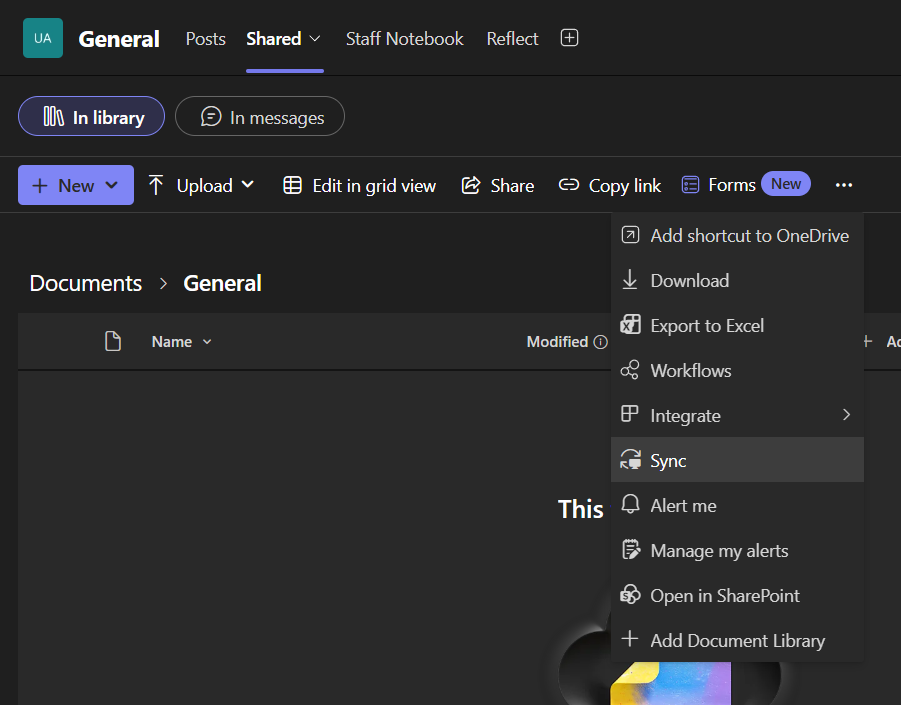
Screenshot 2: Syncing a storage location with Windows File Explorer or macOS Finder.
Storage Exceptions & Overages
If you have deleted as much as possible, relocated shared files to departmental or project shared storage locations, and removed any personal data from your work storage but are still above your allotted amount, you may request additional storage. Be advised that future storage use beyond your allotted amount may result in additional charges. Each institution (UAA, UAF, UAS, System Office) is developing its own process for managing additional storage and any cost-recovery plans. Details will be shared well in advance of any billing. Contact your IT Help Desk for guidance on alternative solutions: UAA Information Technology Services | UA/UAF Nooktech | UAS IT Services.
Disabling of Inactive Accounts
UA is enforcing retention schedules for inactive accounts in accordance with university policy. This is a separate, ongoing process from implementing user storage limits.
This disabling process began in March 2026 and was completed in August 2026. It impacts
all accounts that have not been affiliated with UA for 2 or more years. Files owned
by disabled accounts remain visible to others with shared access and will eventually
become read-only. At a later date, the data associated with these accounts will be
permanently deleted.
Several factors are driving this change. Google ended unlimited storage for higher
education, meaning UA now pays for the storage it uses — but cost alone isn't the
only reason we're making this shift.
Cleaning up inactive accounts and managing storage responsibly reflects a broader
commitment to mature data practices across the university system. Retaining data indefinitely — even when it's cheap
or free — creates real risk. Outdated files, unused accounts, and unmanaged data make
it difficult to protect potentially sensitive data and can expose the university to
liability, complicate responses to public records requests, and make it harder to meet compliance
obligations.
Proactively managing what we store is simply good institutional practice: it reduces
our security footprint, supports data governance goals, and ensures that the systems
we rely on remain sustainable and well-maintained for active students, faculty, and
staff.
Review your shared files and identify any owned by inactive accounts. To check ownership, go to File > Details in the left menu in Google Drive, or check the Owner column in the file list view in Microsoft 365. If you find files at risk, make a copy and save it to your own drive. Contact your IT Help Desk (UAA Information Technology Services | UA/UAF Nooktech | UAS IT Services) for assistance or visit the UA Google Storage Project FAQs page for additional cleanup tips and guidance.
No. Retention schedule enforcement applies only to inactive accounts, reviewed in phases beginning with those inactive for the longest period. Active accounts will not be disabled or deleted under this process.
However, this effort is separate from — and in addition to — upcoming storage limits
that will affect all Google Workspace and Microsoft 365 users, including active ones.
For more information about those limits, along with guidance to help users clean up
their data if needed, visit the UA Google Storage Project FAQs.
Support
For questions about storage limits submit a Google Workspace storage request or Microsoft 365 storage request. Alternatively, contact your IT help desk UAA Information Technology Services | UA/UAF Nooktech | UAS IT Services for further assistance.