
Site Dropdown Navigation

1. Find section-menu.pcf in your site directory
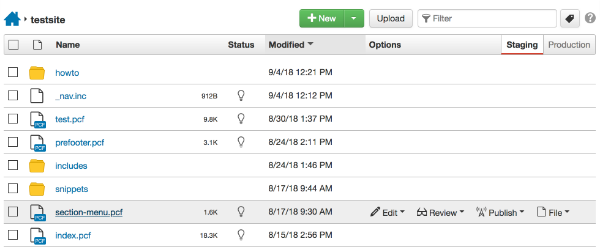
2. Click on Edit --> Page

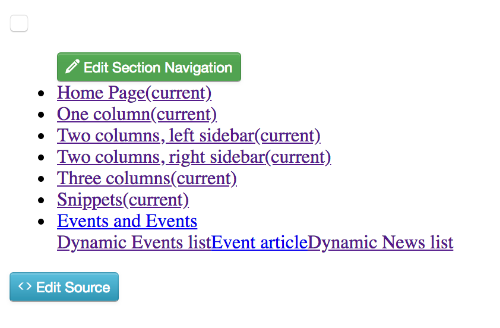
3. Click on Edit Section Navigation
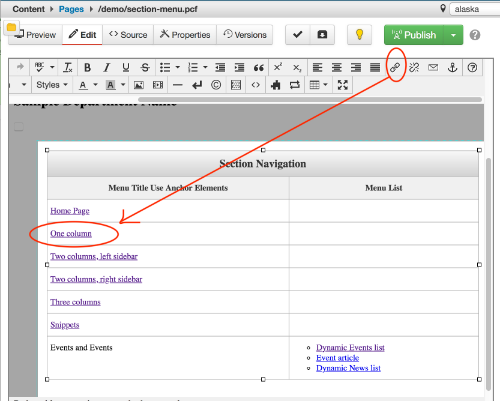
4. Edit the link by selecting the menu text and clicking on a link icon.
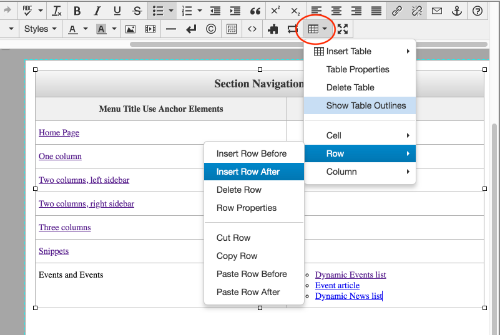
5. To add additional items to the Menu list click in the last column of the last row. Then click on Table --> Row --> Insert Row After
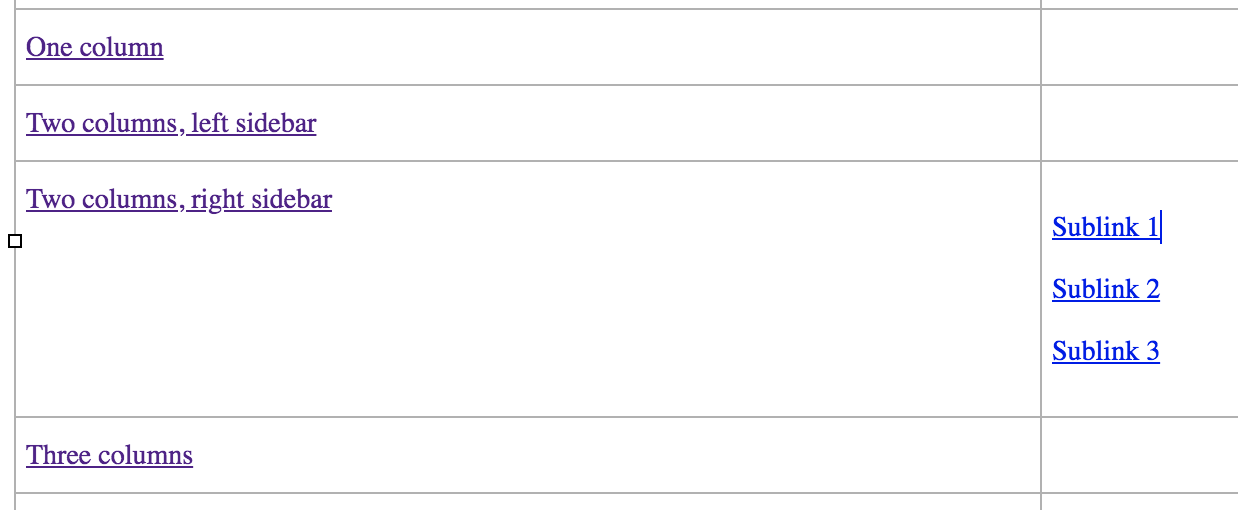
6. To add Dropdown items - Add links to the Menu List column
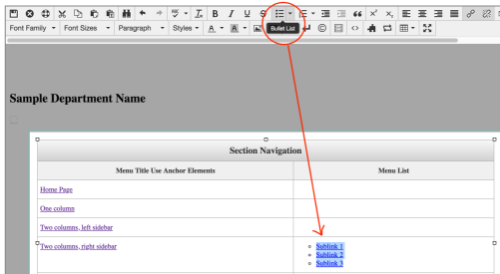
7. Select the list and click on "Bullet List"
8. Click  in the toolbar to save your changes.
9. Once saved, the Navigation file will transform from a table into a page element.
10.  the page to apply the changes to the live site.